Find and format cells that meet the specified condition. Conditional Formatting makes it easy to identify data by highlighting cells or ranges of cells that meet certain conditions. You can also apply a data bar or icon and use the hue function to easily analyze your data.
Apply Cell Highlighting Rule
Perform the following to change the data display format.
- Select a range of cells to apply the cell highlighting rule.
- Click Format-Conditional Formatting-Highlight Cells Rules-Between.
- In the Between dialog box, enter values in the Between input box.
- Select a format from the Format to Apply list.
- Click OK.
Values within the specified range are highlighted with the formatting.
Apply Top/Bottom Rule
Perform the following to apply the top rule.
- Select a range of cells to apply the top rule.
- Click Format-Conditional Formatting-Top/Bottom Rules-Top 10%.
- In the Top 10% dialog box, select a format from the Format to Apply list.
- Click OK.
Clear Rules from Selected Cell
Perform the following to clear conditional formatting applied to a cell.
- Select a range of cells you want to clear the applied formatting.
- Click Format-Conditional Formatting-Clear Rules-Clear Rules from Selected Cells.
Clear Rules from Entire Sheet
Perform the following to clear conditional formatting applied to a sheet.
- Select a cell in the sheet you want to clear the applied formatting.
- Click Format-Conditional Formatting-Clear Rules-Clear Rules from Entire Sheet.
More Information
Submenu of Conditional Formatting
| Menu | Description |
|---|---|
| Highlight Cells Rules | Highlight cells containing data that matches the condition. The preview images listed in the color scales do not represent the actual effect.
|
| Top/Bottom Rules | Highlight cells containing data that matches the condition as the higher or lower value of the data.
|
| Data Bars | Adjusts the bar length by the size of the data value in the cell to indicate the size of the data within the specified range.
|
| Color Scales | Specify a range of numeric data to highlight items that match specified conditions with the different shades of color. |
| Icon Sets | Specify a range of numeric data to represent by icon.
|
| Clear Rules | Clears all rules applied to a selection or sheet at once.
|
| Rules Management | Change or clear the rule. |
Notes
How conditional formatting colors are applied
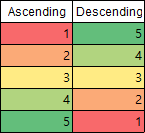
The preview images listed in Conditional Formatting-Color Scales do not represent the actual effects and are applied differently depending on the size of the cell data. For example, if you have data in ascending or descending order, applying the same color will have different results as in the example below.
Was this article helpful?
That’s Great!
Thank you for your feedback
Sorry! We couldn't be helpful
Thank you for your feedback
Feedback sent
We appreciate your effort and will try to fix the article