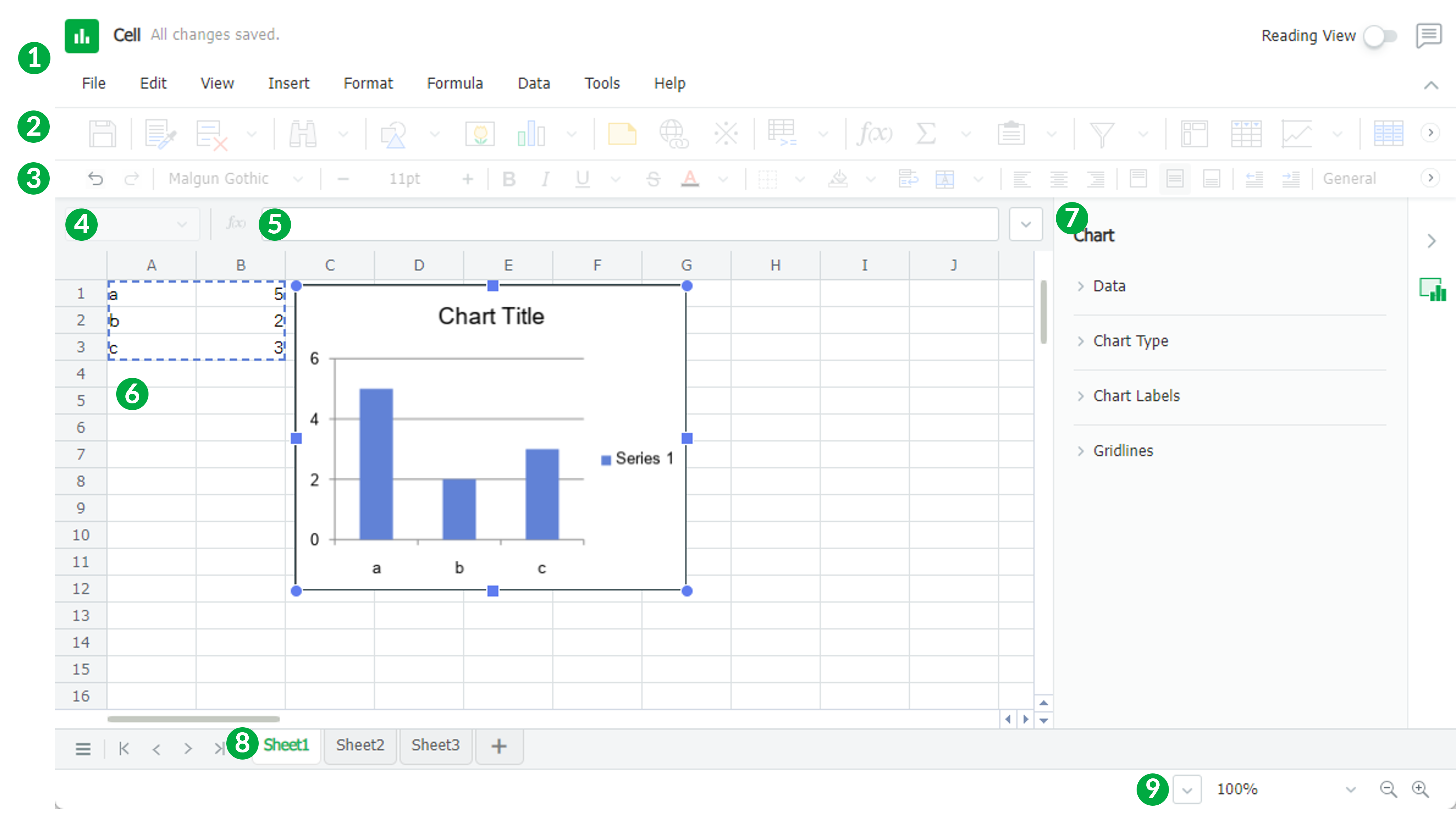
This topic describes the main components of Online Spreadsheet. Spreadsheet is easy to use for those who have not used it before as it follows the Windows standard interface.
More Information
Screen Layout
| Name | Comment | |
|---|---|---|
| ① | Title Bar | The file name, program title, and icons for chat, shortcut guide and help appear. Various menus are grouped according to their functions. Click each menu to open a sub-menu. |
| ② | Menu Bar | Frequently used functions in each menu are provided with icons for easy access by users. |
| ③ | Style Bar | Functions that are frequently used during document editing are grouped under icons. |
| ④ | Name Box | The address of the selected cell is displayed. You can define a name instead of a cell address. |
| ⑤ | Formula Bar | You can also type a formula for the selected cell. You can edit the content of the selected cell. |
| ⑥ | Work Area | When you start Spreadsheet, a document with horizontal and vertical lines appears. This document is called a worksheet. A new workbook has three worksheets by default. A worksheet in Spreadsheet is the area where you work on documents. |
| ⑦ | Task Pane | You can work on documents efficiently by using task panes. You can reduce the document editing time and increase work speed. |
| ⑧ | Tab Navigation Icons and Sheet Tabs | Navigate through worksheets or select a sheet. |
| ⑨ | Zoom | Group of buttons allows you to set the zoom ratio. |
Was this article helpful?
That’s Great!
Thank you for your feedback
Sorry! We couldn't be helpful
Thank you for your feedback
Feedback sent
We appreciate your effort and will try to fix the article