Style Bar groups icons for frequently used formatting-related commands in once place to run those commands with only one action.
More Information
| Icons | Name | Comment |
|---|---|---|
 | Undo | Undo the action previously taken while editing the document. |
 | Redo | Redo the action that was just canceled by Undo. |
 | Font | Specify the font to use. |
 | Font Size | Enlarge or reduce the text size. Resizing also changes proportions of the text. |
 | Bold | Apply bold style to the selected text. |
 | Italic | Apply italic style to the selected text. |
 | Underline | Underline the selected text. |
 | Strikethrough | Apply strikethrough to the selected text. |
 | Font Color | Change the color of the selected text. |
 | Borders | Change the border of the selected cell to the selected shape.
|
 | Background Color | Fill the cell with the color you want. |
 | Text Wrapping | Display multiple lines to match the cell width as the contents entered in the cell go beyond the cell size. |
 | Merge Cells | Combine two or more selected cells into one.
|
 | Align Left | Align paragraphs to the left margin. |
 | Align Center | Align paragraphs to the center. |
 | Align Right | Align paragraphs to the right margin. |
 | Top | Align paragraphs to top of the cell. |
 | Center | Align paragraphs to center of the cell. |
 | Bottom | Align paragraphs to bottom of the cell. |
 | Outdent | Decrease the left margin of the current paragraph. |
 | Indent | Increase the left margin of the current paragraph. |
 | Number Format | Display data entered into a cell in a specific format.
|
 | Currency Symbols | Apply the currency symbol to the selected cells. Applying a currency symbol automatically formats that cell as “accounting”. |
 | Percentage | Apply a percentage sign to the selected cells. Applying a percentage symbol automatically formats that cell as “percentage”. |
 | Comma | Display a comma after every three digits of the number. |
 | Increase Decimal | Increase the number of decimal places in the selected number by one. |
 | Decrease Decimal | Decrease the number of decimal places in the selected number by one. |
Notes
Color Palette
The color palette allows you to specify any color you want.
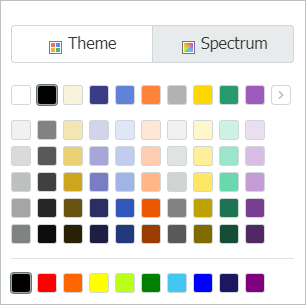
- Theme
A color that is a combination of several colors that match a specific theme and is provided as a group is called a theme color. Click the arrow on the right to list several predefined theme colors.
- Spectrum
You can select the desired color from the gradient color spectrum or enter the color code to directly specify a color.
Was this article helpful?
That’s Great!
Thank you for your feedback
Sorry! We couldn't be helpful
Thank you for your feedback
Feedback sent
We appreciate your effort and will try to fix the article