You can line up multiple data in ascending or descending order.
Sort Date in Ascending Order
Perform the following to sort data in the ascending order.
- Select a range of data cells except for the header row.
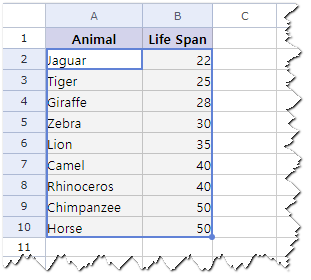
- Click Data-Sort A to Z or the Sort A to Z icon on the toolbox.
Sort Date in Descending Order
Perform the following to sort data in the descending order.
- Select a range of data cells except for the header row.
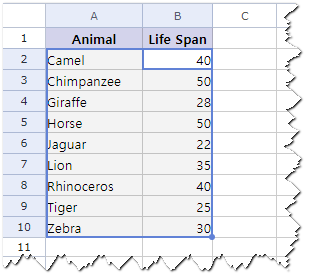
- Click Data-Sort Z to A or the Sort Z to A icon on the toolbox.
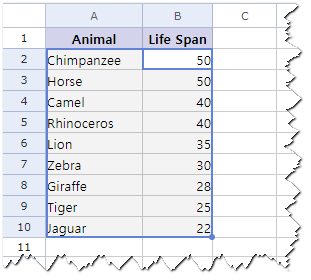
- Check the organized data in the descending order.
Sort Filtered Data in Ascending Order
Perform the following to sort data in the ascending order.
- Click the Filter Expand
 icon at the filtered cell for the basic column to be sorted out.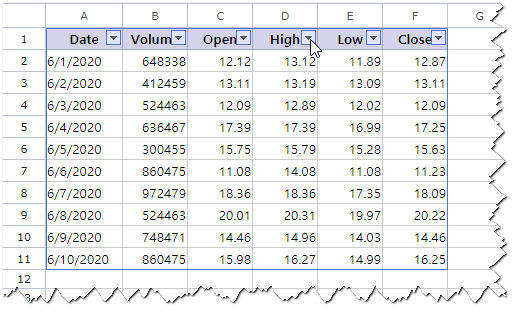
- Click Sort A to Z from the menu.
Data will be organized in the ascending order and the Expand Filter icon changes to the Ascend
  icon.
icon.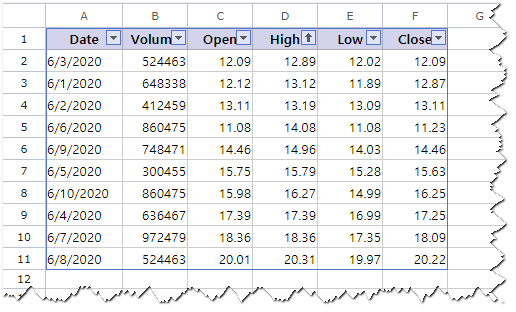
Note
You cannot specify the column you want to sort by, however, you can sort by column within the filter-applied range of data.
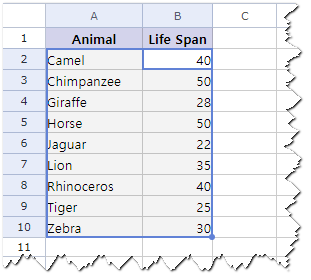
Data is sorted by the first cell where you started the selection of the range of data. The following data is sorted by Life Span (Column B) because the cell selection was made from B2.
Was this article helpful?
That’s Great!
Thank you for your feedback
Sorry! We couldn't be helpful
Thank you for your feedback
Feedback sent
We appreciate your effort and will try to fix the article