When a document is saved in your library, you can open it in a web browser and then collaborate on it using Online Office.
You will see each other's changes as soon as they are made, and you don't have to wait for others to finish editing. That way real-time collaborating results in a document that reflects your great team effort. Also, all participants can communicate with the real-time chat to enable co-editing more convenient and effective.
Steps
Co-edit
You can send the document link to participants to co-edit the document.
- Share a document to others that you want to collaborate with.
Click the Collaborator tab in the task pane to check the names of the users participating in the co-editing session.
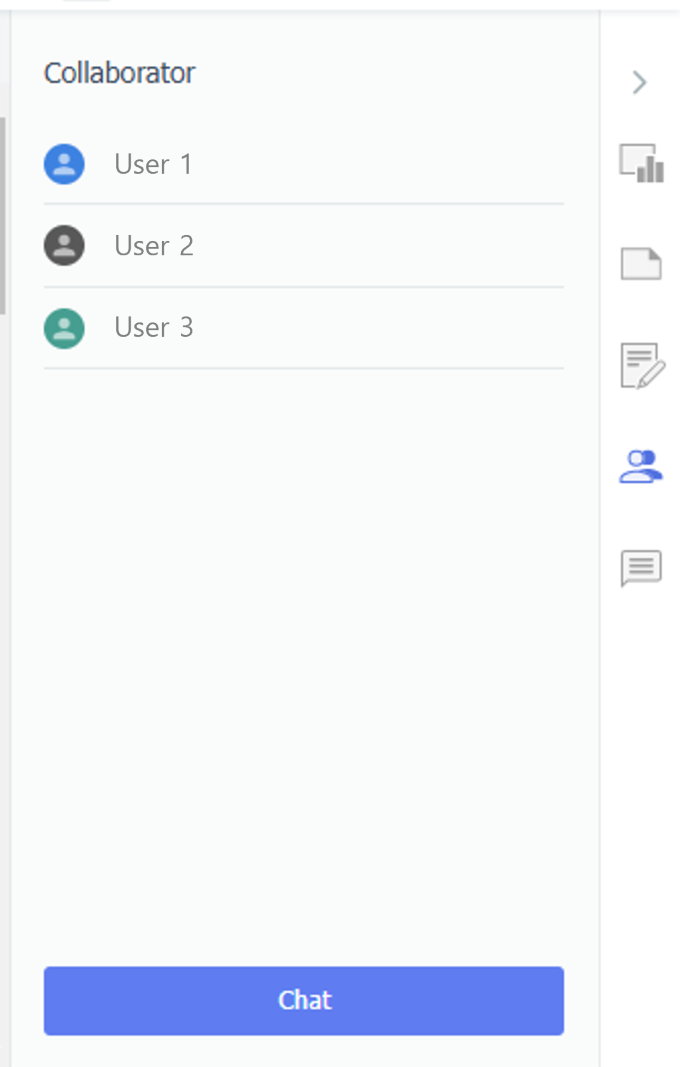
- Start collaborating on the document. While you are editing your document, Online Office shows you where others are working on and each other's updates on the document. The document on collaborating is saved automatically.
Real-time chat
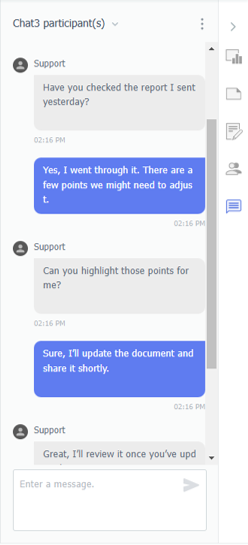
You can communicate with all paricipants in real time using the chat while co-editing.
- Do one of the following.
- Click the Collaborator tab in the task pane.
- Click Tools-Chat.
- Type your messages in the message box and press <Enter> or click the Send button.
- Deliver some notice or have conversation for co-editing in the chat window.
Share the current location on the chat window
You can share your edit location exactly while chatting with co-editors.
- Position the pointer over the location you want to share with others or click the object to share, and then right-click it.
- Click Share Current Location on Chat Window in the context menu. A unique value for the current location is entered in the message box of the chat window.
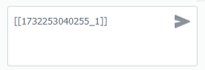
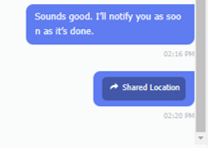
- Click Send. A link is sent to the shared location in the chat window, and any chat participant can click the link to go to the location.
More Information
Color notification of others while co-editing
- Online Word Processor
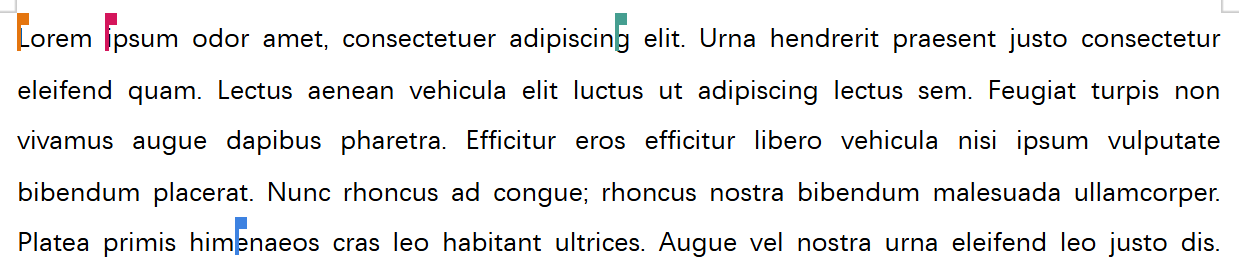
Different colored cursors are shown on a paragraph or word that others are working on, and their names are shown when you place the mouse pointer over each cursor.
- Online Spreadsheet
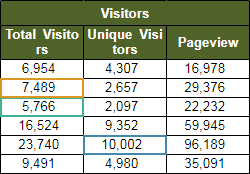
Different colored borders are shown on cells that others are working on, and their names are shown when you place the mouse pointer over each border.
- Online Presentation
Different colored icons are shown around a slide thumbnail that others are working on together, and their names are shown when you place the mouse pointer over each icon.
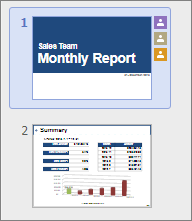
Different colored icon and border are shown on a textbox that others are working on, and their names are shown when you place the mouse pointer over the icon.


Restriction
Online Word Processor
The Undo menu might be unavailable when multiple co-editors are trying to undo changes.
The Merge Cells menu is unavailable while collaborating.
Online Spreadsheet
Collaborating is only run based on cells, not text.
If one of co-editors deletes a spreadsheet, notification will alert others of a message and editing will be blocked.
Online Presentation
Cursors of co-editors are not shown while they are editing text within a textbox. Instead, name of co-editor with color border highlights a textbox that others are working on.
The Undo menu might be unavailable when multiple co-editors are trying to undo changes.
Restriction on adding a chart while co-editing
Adding a chart is not allowed while co-editing is in progress.
Was this article helpful?
That’s Great!
Thank you for your feedback
Sorry! We couldn't be helpful
Thank you for your feedback
Feedback sent
We appreciate your effort and will try to fix the article