Create consistent, polished documents throughout using predefined theme effects.
Theme effects have various combinations of line, fill, and effect properties of a shape, and the theme effect determines how the effect is applied to the shape style.
Steps
Apply theme effects
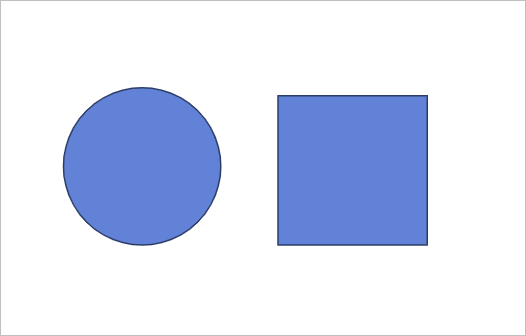
- Click Shapes in the menubar and select to insert an “Ellipse” and “Rectangle” from the image collection.
- Click Format-Theme Effects to check the currently applied theme effect and line properties of the inserted shape.
- Click Format-Theme Effects and select “Cave” from the image collection.
- Check if line properties of the shapes are changed to match the select theme effect.

More Information
Theme Effects Image Collection
Each theme effect consists of three types of shapes, each with a combination of various line styles, fill styles, and shape effects in the image collection.
Note
Limitation on customizing some properties of the shape style
Online Presentation does not support shape style functionality, so some properties (e.g. “Bright - Accent 2') cannot be directly customized. However, you can open a file with the specified properties and change it through the theme effect function.
Was this article helpful?
That’s Great!
Thank you for your feedback
Sorry! We couldn't be helpful
Thank you for your feedback
Feedback sent
We appreciate your effort and will try to fix the article