Create consistent, polished documents throughout using predefined color schemes.
You can change some color values from the built-in theme color schemes, or you can create a new theme color scheme and save it as a custom theme color to use. When you change the theme color scheme, the color information changes are applied to all theme colors applied to the document as well as to the theme colors in the color palette.
Steps
Apply a different theme color
- Click Format-Theme Color and select “Check” from the Basic group.
- The “Check” theme color is applied to all slides.



More Information
Theme Colors Image Collection
Theme color schemes categorized in the Basic group are provided as image collection. If there are customized theme colors, the Custom group appears additionally.
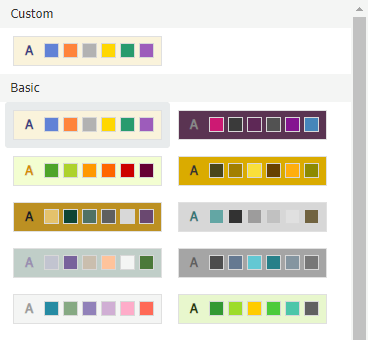
The following sub-menu appears at the bottom of the theme color image collection.
- Create New Theme Color
Open the Create New Theme Color dialog box to view current theme color scheme or configure custom scheme.
Was this article helpful?
That’s Great!
Thank you for your feedback
Sorry! We couldn't be helpful
Thank you for your feedback
Feedback sent
We appreciate your effort and will try to fix the article