Create consistent, polished documents throughout using predefined theme colors.
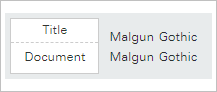
Theme fonts basically have two fonts for headings and body text by default.
Steps
Apply a different theme font
- Click Format-Theme Font.
- Select a theme from the drop-down list.
- The selected theme color will be applied to all slides.
More Information
Theme Font Drop-Down List
A set of available theme fonts is provided as a drop-down list.
Note
Applying theme font
Click the theme font in the theme font drop-down list to apply the selected theme font to all slides in the current document.
List of available theme fonts
Theme fonts consist of a pair of heading fonts and body fonts. The theme font pairs provided by Online Presentation are available only if each corresponding font is installed on the user's computer.
If you do not see the theme font you want in the list, check if the fonts installed on your computer. If you are in some environment with a system administrator, contact the administrator.
Was this article helpful?
That’s Great!
Thank you for your feedback
Sorry! We couldn't be helpful
Thank you for your feedback
Feedback sent
We appreciate your effort and will try to fix the article