When you insert a PivotTable or select an inserted PivotTable, the PivotTable task pane appears, showing all fields and area-specific configuration.
Here you can see the entire field and area-specific configuration of the PivotTable, and you can drag the fields to edit the configuration of the PivotTable.
Steps
Moving Fields
- Select any cells within a PivotTable. The PivotTable task pane appears.
- From the Select fields to add to the report list, select a field and then drag it to Row Area.
- The selected field appears in the Row Area list, and the configuration of the PivotTable is changed.
More Information
PivotTable Task Pane
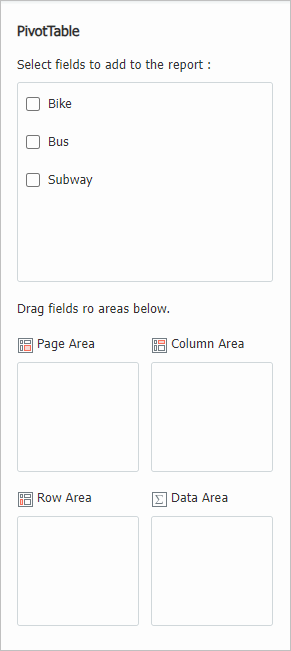
Select fields to add to the report
Shows a list of all fields in the selected area. Drag the fields to each area at the bottom to form a PivotTable.
Checking the checkbox in fron of each field automatically fills in the area below to form a PivotTable.
Page Area
This area places the field by which you want to base across the PivotTable and is used to filter the values in the data area.
Row Area
Displays row information to the left of the PivotTable.
Column Area
Displays column information to the left of the PivotTable.
Data Area
This area displays the values that change according to the row and column information as a source list containing data.
Note
Moving field location
The PivotTable Field task pane allows you to move a PivotTable in various ways.
In Select fields to add to the report, drag the items into the PivotTable area on the worksheet fills the field in that area. Also, dragging from Select fields to add to the report to each of the area list boxes below populates the fileds in that area.
Fields that have already been entered can be moved to the location you want by clicking the expand menu.
Was this article helpful?
That’s Great!
Thank you for your feedback
Sorry! We couldn't be helpful
Thank you for your feedback
Feedback sent
We appreciate your effort and will try to fix the article