Change column such as adding, deleting, adjusting width, and hiding columns.
Delete Column
Perform the following to hide a column.
- Select the heading of the column that you want to hide.
- Click Edit-Column-Hide Column.
The left and right arrow icons between columns appear to allow you to expand the hidden column.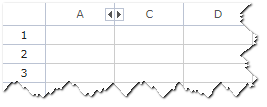
Show Hidden Column
Perform the following to show a hidden column.
- Select the heading of the column before and after the hidden columns.
- Click Edit-Column-Unhide Column.
Or click the expand icons to the left or right of the hidden column.
Delete Column
Perform the following to delete a column.
- Select the heading of the column that you want to delete.
- Click Edit-Column-Delete Column.
To restore the deleted column, click Edit-Undo or click the Undo icon on the toolbar.
More Information
Submenu of Column
| Menu | Description |
|---|---|
| Insert Column | Insert column in the selected area. |
| Delete Column | Delete column in the selected area. |
| Hide Column | Hide column in the selected area. |
| Unhide Column | Unhide column in the selected area. |
| Column Width | Adjust column width in the selected area. |
Was this article helpful?
That’s Great!
Thank you for your feedback
Sorry! We couldn't be helpful
Thank you for your feedback
Feedback sent
We appreciate your effort and will try to fix the article