You can automatically fill in data into its adjacent cells by designating specific area.
Fill Data Down
Perform the following to fill the selected range with the same data that is in the first cell of the selected range.
- Select a range of cells that you want to fill with the same data.
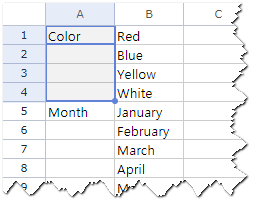
- Click Edit and Fill-Down.
Fill Data with Mouse
Perform the following to fill the cells with the data by dragging the mouse.
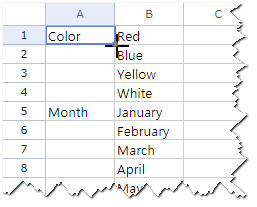
- Place the mouse on the cell handle (
 ) to change the mouse pointer to the cross(
 ).
).
- Drag the cross (
 ) until you reach the last cell where you want to finish the data fill.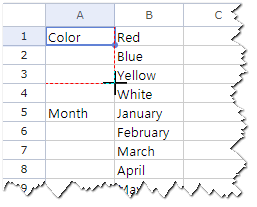
- Release the mouse.
More Information
Submenu of Fill
| Menu | Description |
|---|---|
| Down | Fill the selected range down with the same data that is in the first cell of the selected range. |
| Right | Fill the selected range right with the same data that is in the first cell of the selected range. |
| Up | Fill the selected range up with the same data that is in the first cell of the selected range. |
| Left | Fill the selected range left with the same data that is in the first cell of the selected range. |
Fill Motion
Fill the cells with the same data that is in the first cell of the selected range. If anything is typed in other cells, it is replaced with the first cell of the selected range.
Was this article helpful?
That’s Great!
Thank you for your feedback
Sorry! We couldn't be helpful
Thank you for your feedback
Feedback sent
We appreciate your effort and will try to fix the article