Inserts or deletes the bullets or numbering at the beginning of the selected paragraphs or the paragraph where the cursor is positioned.
Bullets and Numbering is useful for arranging and classifying multiple items.
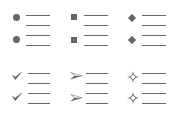
Add bullets to a list
To add bullets to the selected paragraph:
- Position the mouse cursor on the text or select the paragraphs you wish to apply the bullets to.
- Click Format-Bullets.
- Select the desired bullet.
Add numbers to a list
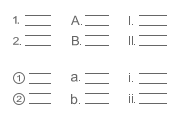
To add numbers to the selected paragraph:
- Position the mouse cursor on the text or select the paragraphs you wish to apply the numberings to.
- Click Format-Numbering.
- Select the desired number.
Apply multilevel list style
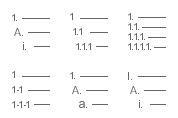
To apply multilevel list style for the selected paragraph:
- Position the mouse cursor on the text or select the paragraphs you wish to apply the numberings to.
- Click Format-Multilevel List.
- Select the desired multilevel list style.
Note
Promote or demote the numbered list
To promote or demote the numbered list, click the Increase Indent  or Decrease Indent
  icon on the Style Bar.
Restart numbering
To restart numbering from the current position, right-click and select Start New List.
Was this article helpful?
That’s Great!
Thank you for your feedback
Sorry! We couldn't be helpful
Thank you for your feedback
Feedback sent
We appreciate your effort and will try to fix the article