Display the data as a win/loss chart inside a cell. This is useful for visualizing and presenting binary data like win/loss result.
Create Win/Loss Sparkline
- Select an empty cell to insert a sparkline.
- Click Data-Sparklines-Win/Loss.
- Specify the range of data on the Insert Sparkline dialog box.
- Click OK.
Note
Win/Loss Sparkline
Positive values mean a win and negative values mean a loss. Based on the horizontal axis, the upward marker for a positive value (win) and downward marker for a negative value (loss) and the empty for a zero value are used to visualize binary results.
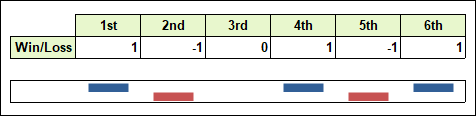
The Win/Loss sparkline shows the same length of markers regardless of the values. For example, even though a team won the twelve points (12) at the first game and lost the seven points (-7) at the second game, the markers in the same length appear in a cell: upward marker for the twelve-point win and downward marker for the seven-point loss.
Was this article helpful?
That’s Great!
Thank you for your feedback
Sorry! We couldn't be helpful
Thank you for your feedback
Feedback sent
We appreciate your effort and will try to fix the article