You can revert back from completed actions in the process of document editing by canceling the previous command, deleting typed content, or retrieving deleted content.
Undo
- Type text or edit text.
- Perform one of the following.
- Click the Undo
 icon on the toolbar.
 - Click Edit-Undo.
- Click the Undo
Wrap Text and Undo
- Type lengthy text in a cell.
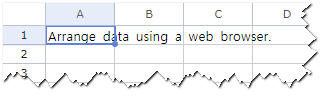
- Click the Text Wrapping
 icon on the toolbar to display text in multiple lines.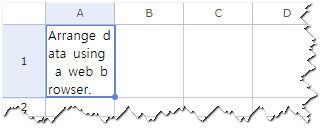
- Click the Text Wrapping
 icon or the Undo
  icon on the toolbar to display text in multiple lines.
Change Column Width and Undo
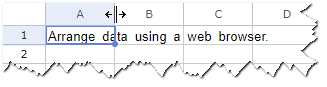
- Place the mouse over the boundary of column heading to change the mouse pointer to the double-sided arrow
 .
.
- Click the double-sided arrow
 and drag it right or left until the column is the width that you want.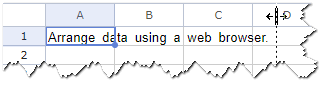
- Release the mouse.
- Click the Undo
 icon on the toolbar to cancel the change of the column width.
Note
This feature is useful when you wish to undo your mistake or when you wish to reverse the document to its previous state. If there are no more actions to be undone, the Undo menu will be disabled.
Was this article helpful?
That’s Great!
Thank you for your feedback
Sorry! We couldn't be helpful
Thank you for your feedback
Feedback sent
We appreciate your effort and will try to fix the article