Tables are useful for organizing and presenting information, especially when creating complex documents that deal with numerical data.
Rows and columns can be added to or deleted from tables that have been inserted into a document. Attributes such as size, shape, and color of cells and borders can be modified.
Insert a table
To insert a table:
- Do one of the following.
- Click the Table
 icon on the toolbox.
 - Click Insert-Table.
- Click the Table
- In the Insert Table dialog box, specify number of rows or columns you want.
- Click Insert.
Add rows/columns to a table
- Position the mouse pointer on a cell where you want to add rows/columns.
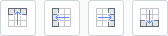
- Click the Insert Row Above, Insert Row Below, Insert Column to Right, or Insert Column to Left icon under Table of the Table task pane.
Delete rows/columns from a table
- Position the mouse pointer on a cell where you want to delete rows/columns.
- Click the Delete Row or Delete Column icon under Table of the Table task pane.

Was this article helpful?
That’s Great!
Thank you for your feedback
Sorry! We couldn't be helpful
Thank you for your feedback
Feedback sent
We appreciate your effort and will try to fix the article