You can set the entire content of a document as a block or select multiple objects.
Select All allows you to select the entire contents including shapes, images, text and so on. This is useful for changing fonts or paragraphs in the entire document, or copying or cutting the entire document.
Select Objects allows you to draw the selection area so that you can select all objects within the selection area.
Select all
To select the entire content of a document:
- Click Edit-Select-Select All.
- The entire document gets selected as a block.
- Run a command.
- Press ESC to deselect the block.
Select objects
To select objects such as shapes or images:
- Click Edit-Select-Select Objects.
- Drag the mouse to draw a rectangular selection area that completely contains the objects in the document,
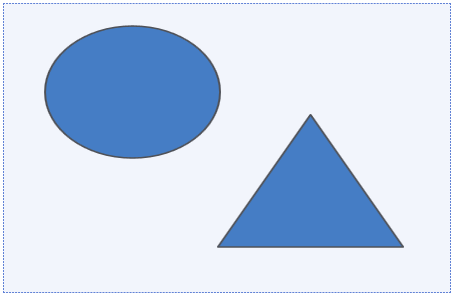
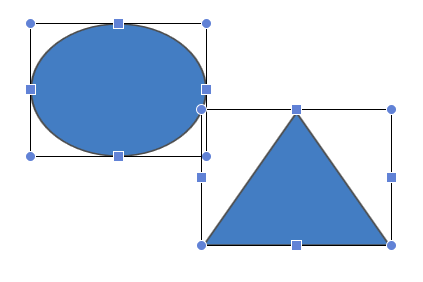
- The objects within the selection area are selected with the control points on the outline of each object placeholder.
Restriction
Some pictures not selected in the object selection mode
Clicking Edit-Select-Select Objects allows you to draw the object selection area by dragging the mouse and select objects within the selection area. Pictures that set to In Line with Text under Text Wrapping are not selected, even though they are within the selection area.
To select those pictures in the object selection mode, set Alignment-Text Wrapping to In Front of Text or Behind Text on the task pane. For more information about the task pane menu when a picture is selected, please refer to View-Task Pane-Picture
Was this article helpful?
That’s Great!
Thank you for your feedback
Sorry! We couldn't be helpful
Thank you for your feedback
Feedback sent
We appreciate your effort and will try to fix the article