You can insert an image saved on your device or from website. After inserting an image, you can zoom in and out, format border lines, and apply effects.
Insert an image from your device
- Place a cursor where you want to insert an image.
- Click Insert-Image or the Image
 icon on the toolbox.
 - Select Device in the Insert Image dialog box, and then click Select File.
- In the Open dialog box, browse the image file, select it and then click Open.
- Click Insert on the Insert Image dialog box.
Insert an image from website
- Place a cursor where you want to insert an image.
- Click Insert-Image or the Image
 icon on the toolbox.
 - Select Web Address on the Insert Image dialog box.
- Enter web address in the Web Address field or paste the address copied from website.
- Click Insert on the Insert Image dialog box.
To crop picture
- Click to select a picture you want to crop in the edit window.
- When you click the Crop
 icon under Image Properties of the Drawing Properties tab on the Image task pane, eight border shapes appear in the picture border and the mouse pointer changes.
- While holding down the left middle line of the picture, drag the mouse in the direction you want to crop, and then release the left mouse button when the required part is cropped properly.
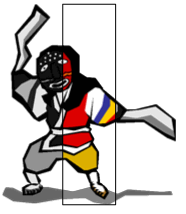


- Click on outside of the picture or press ESC to exit crop mode.
You can also click the Crop icon again to exit crop mode.
Was this article helpful?
That’s Great!
Thank you for your feedback
Sorry! We couldn't be helpful
Thank you for your feedback
Feedback sent
We appreciate your effort and will try to fix the article