1. Overview
This document describes how to connect SharePoint (on-premise) as the host with TFO as the editor.
The systems used in this description are as follows:
- SharePoint Server (on-premise)
- TFO (v17.x.x or newer) Docker container
Download: thinkfree-office-docker-v17.0.0-20260930.tar.gz
2. Configuration
2.1 Adding and Configuring a WOPI Adapter
Register the adapter in Admin Page > Adapter Management > Add Adapter.
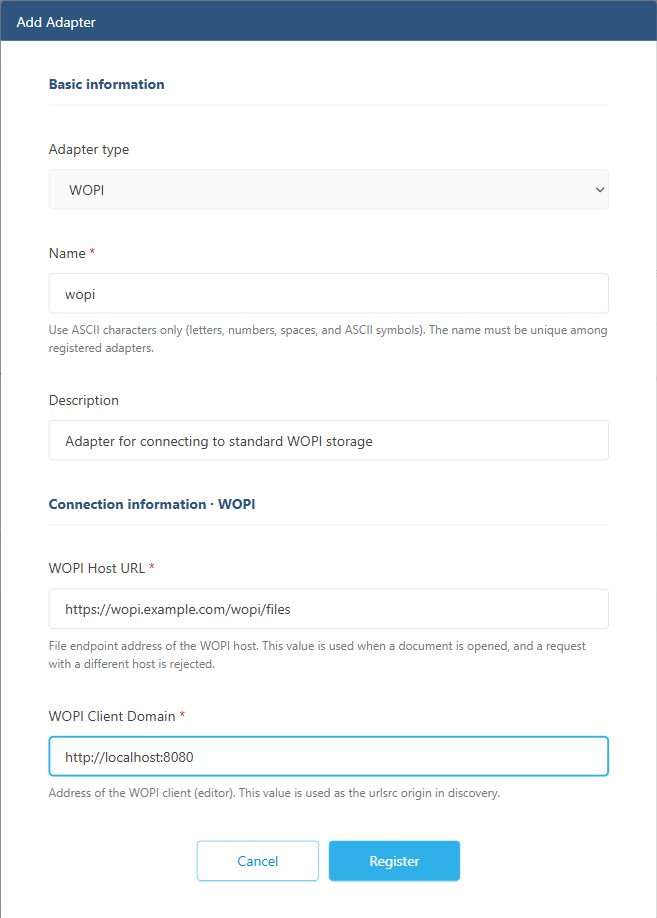
- Under External linkage in the Office admin page, click Add Adapter.
- Select WOPI as the Adapter type.
- Enter the following connection details.
Item | Value | Note |
Adapter name | wopi |
|
| Description | adapter description | What the adapter is used for. You can keep the prefilled description. |
| WOPI Host URL | host address | WOPISrcSelected items (extracted from if not registered ) |
| WOPI Client Domain | Thinkfree Office address | required |
- When registering a WOPI Host URL, a verification process is added to check if the registered URL and the request URL are identical.
Precautions when entering WOPI Client Domain
Enter the origin (scheme + host + port) that the TFO exposes externally. Do not append the path.
WOPI Client Domain = https://wopi.thinkfree.com
If this value is empty /hosting/discovery, it returns the message below with 503 Service Unavailable and stops.
WOPI client domain is not configured. Register a WOPI adapter in admin before requesting discovery.
Note: Additional settingUp until M16, the key under Admin Page > Settings wopiDomain was used. Starting with M17, it has been moved to Adapter Parameters, and the Adapter value takes precedence. Although there are no operational issues even if the existing value remains, it is recommended to clean it up.
2.2 Deployment Verification
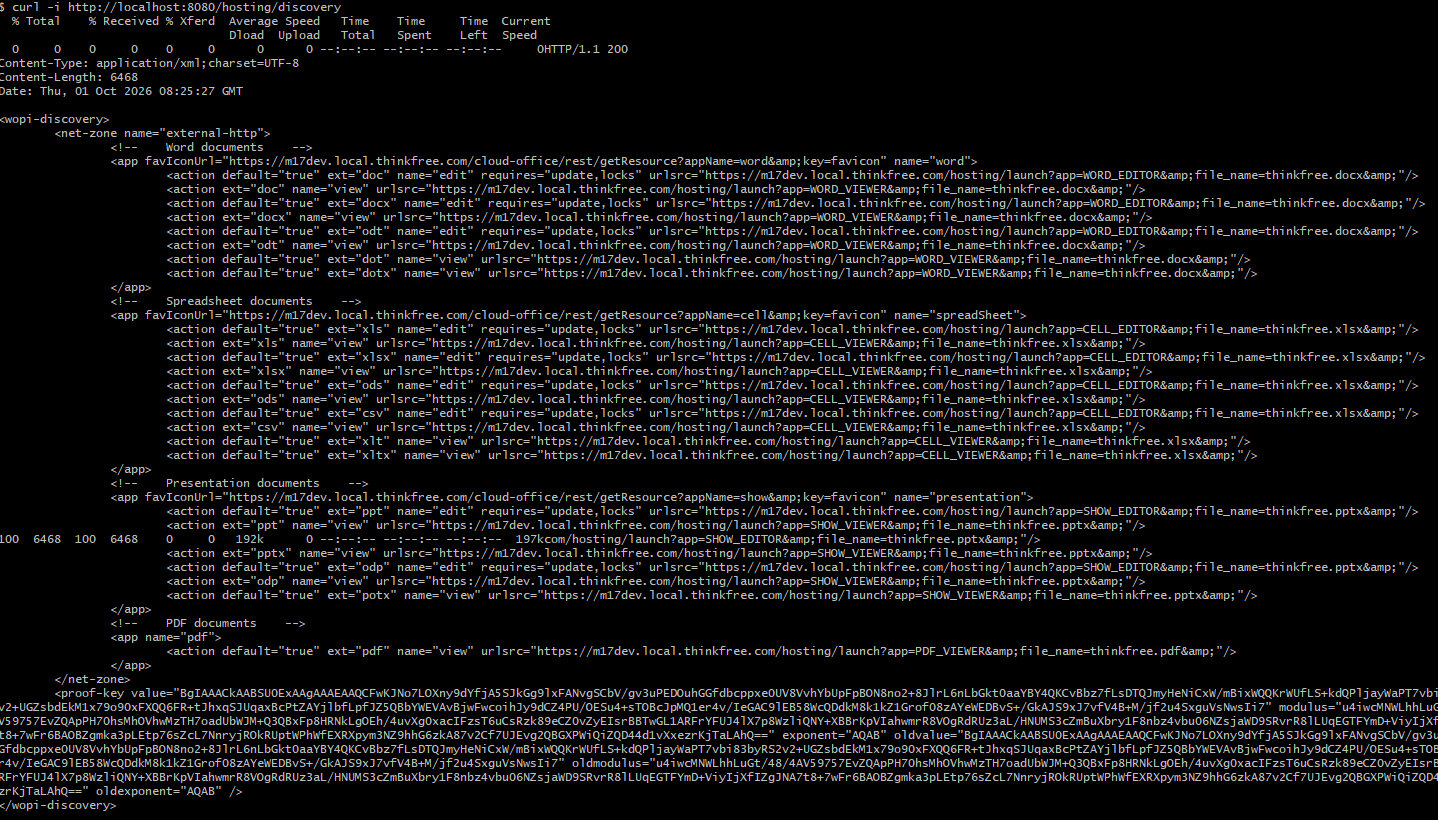
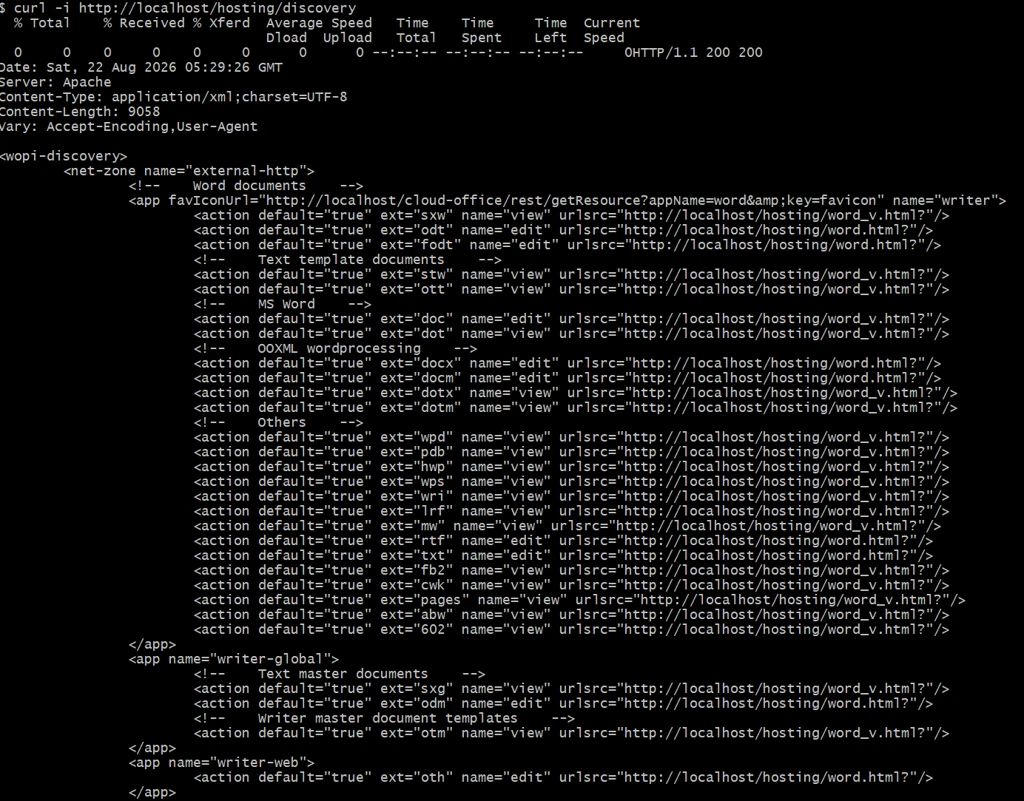
- Enter the following command in the VM terminal outside the container.
curl -i https://wopi.thinkfree.com/hosting/discovery
- 200 OK+ XML → Normal
- 503→ WOPI Client Domain not configured (2.2.1)
- Example result (for reference in a local VM environment without a domain configured):
3. Integration
3.1 WOPI Host (SharePoint)
The WOPI host only needs to know a single discovery URL for the client (TFO). The host downloads XML from that URL and registers the extension → Action URL (urlsrc) mapping and the proof-key into its farm. In SharePoint, the result of this registration is called a WOPI Binding.
TFO discovery URL: https://{wopiDomain}/hosting/discovery
The steps below are performed in the SharePoint Management Shell.
3.1.1 Prerequisite check
The SharePoint server must be able to reach the TFO discovery URL directly for binding registration to succeed.
Test-NetConnection "wopi.thinkfree.com" -Port 443

ComputerName : wopi.thinkfree.com
RemoteAddress : 13.209.94.28
RemotePort : 443
TcpTestSucceeded : True

Invoke-WebRequest -Uri "https://wopi.thinkfree.com/hosting/discovery" -UseBasicParsing
StatusCode : 200
Content-Type: application/xml
The above normal result is returned. If it fails, check the firewall/security groups and section 2.2 first.
If SharePoint runs over HTTP while TFO runs over HTTPS, HTTP OAuth must be allowed so documents can be opened and saved using OAuth tokens.
(Get-SPSecurityTokenServiceConfig).AllowOAuthOverHttp
If the result is False, run the following:
$c = Get-SPSecurityTokenServiceConfig
$c.AllowOAuthOverHttp = $true
$c.Update()
3.1.2 Register WOPI Binding (i.e perform discovery)
First, check the existing binding. If the result is empty, a new registration can be made; if another WOPI client is already registered, clean it up with Remove-SPWOPIBinding before proceeding.
Get-SPWOPIBinding
The command below causes SharePoint to read TFO's discovery XML. For -ServerName, entering only the host name makes SharePoint automatically look up /hosting/discovery.
New-SPWOPIBinding -ServerName "wopi.thinkfree.com"
The registration result lists the Action registered for each extension defined in the discovery XML.
Application : writer
Extension : ODT
Action : edit
IsDefaultAction : True
ServerName : wopi.thinkfree.com
WopiZone : external-http
...
Next, specify which net-zone from the discovery XML SharePoint should use. This must exactly match the net-zone value in the discovery XML; the TFO default template is external-http.
Set-SPWOPIZone -Zone "external-http"
Get-SPWOPIZone
Check the registration result.
Get-SPWOPIBinding |
Where-Object { $_.Extension -in @("DOCX", "XLSX", "PPTX") } |
Select-Object Application, Extension, Action, IsDefaultAction, WopiZone, ServerName

Application : writer
Extension : DOCX
Action : edit
IsDefaultAction : True
WopiZone : external-http
ServerName : WOPI.THINKFREE.COM

Application : calc
Extension : XLSX
Action : edit
...
Once the binding is registered successfully, also verify the following three items in the discovery XML:
- Does the net-zone name match the value specified in Set-SPWOPIZone?
- Is every urlsrcpath /hosting/a path?
- Are the proof-key's value, modulus, exponent, and old* attributes all populated?
3.1.3 Discovery update
If the discovery content changes, both TFO and SharePoint must be updated. The order is important.
- TFOwopiDiscovery — Delete the valuein Admin Page > Settings > User Properties . Since TFO stores the template in this key on the first request and only returns that value thereafter, it is not automatically updated even if the template file changes due to a deployment.
- SharePoint — Reloads cached discoveries.
Update-SPWOPIProofKey -ServerName "wopi.thinkfree.com"
Note: If you skip step 1 and just clear the SharePoint cache, nothing changes because the TFO returns the old XML as is.
The domain, favicon, and proof-key are replenished with every request, so they do not need to be deleted. This applies only when the app / action / extension configuration changes .
3.1.4 Verify document opening
Once the binding is registered, the "Open" menu in the SharePoint document library shows an "Open in Word/Excel/PowerPoint Online" item. This works from configuration alone, with no additional development, but the button label cannot be changed (changing it requires additional development).
Normal behavior when opening a docx/xlsx/pptx document is as follows:
- SharePoint calls the TFO launch page with POST {urlsrc}?WOPISrc=...
- The launch page redirects to /cloud-office/api/wopi/{fileName}/open?...
- The TFO editor opens, and saving updates the original document in SharePoint
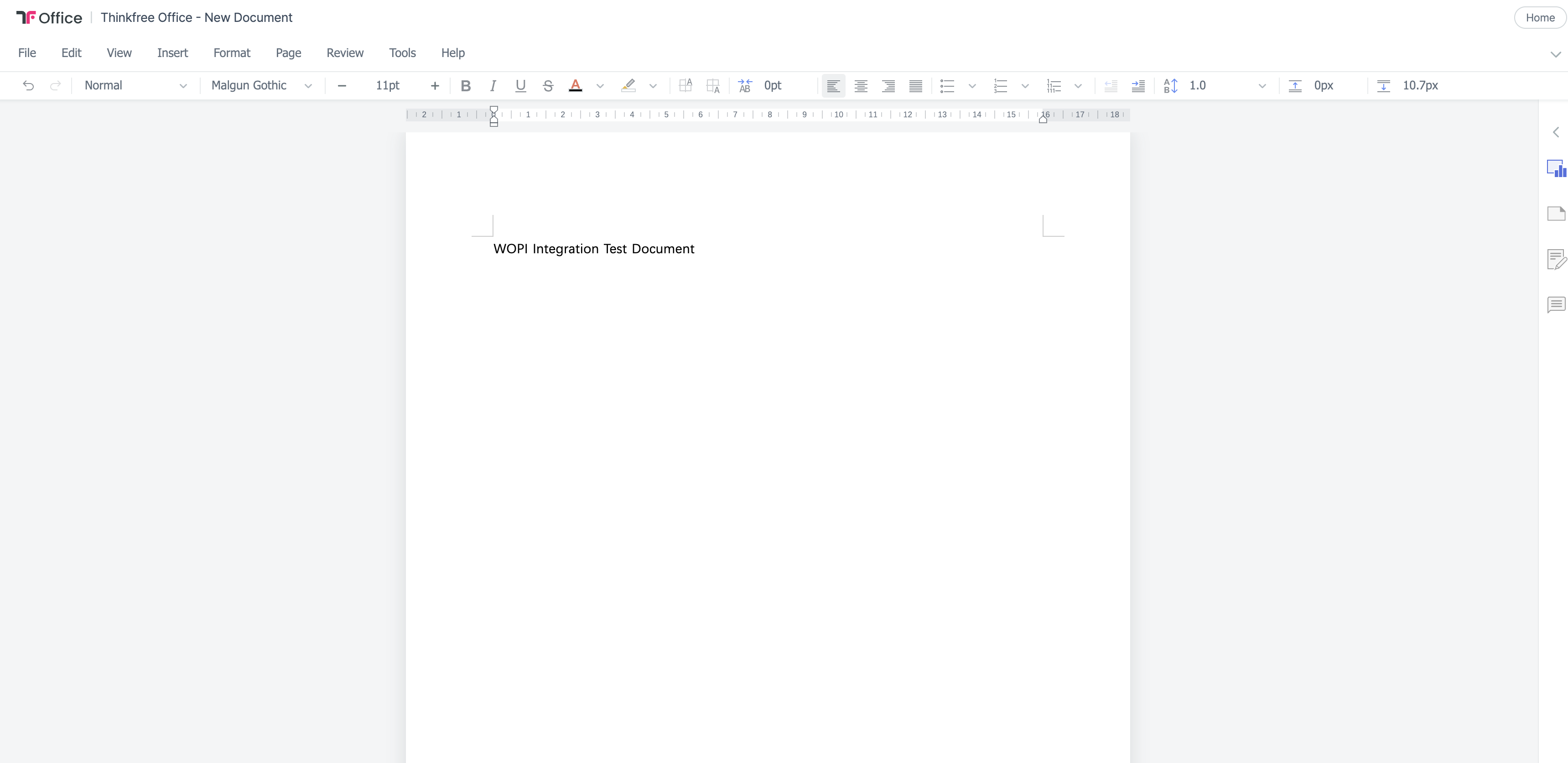
TFO editor open with the test document
Check the WOPI authentication and Proof verification logs on the SharePoint side with the command below.
Get-SPLogEvent -StartTime (Get-Date).AddMinutes(-5) |
    Where-Object {
        $_.Message -match "SPApplicationAuthenticationModuleV2|Invalid Proof|Malformed WOPI|CheckFile|IsAuthenticated"
    } |
    Sort-Object Timestamp |
    Format-List Timestamp, Category, Level, Correlation, Message
If everything is normal, you will see IsAuthenticated=True and WOPI new request (CheckFile) in the log.
3.2 WOPI Client (Thinkfree Office)
Once you complete the process in 3.1, the Proof Key-related properties are automatically generated and stored in the DB. You can check them in Admin page > Settings > User properties.
Key | Description |
wopiPublicKey / wopiPrivateKey | RSA 2048 key pair (Base64) |
wopiValue | discovery's value — in CAPI PUBLICKEYBLOB format |
wopiModulus / wopiExponent | discovery's modulus / exponent |
wopiOldValue / wopiOldModulus / wopiOldExponent / wopiOldPrivateKey | The previous generation's keys. On first creation, these hold the same values as the current keys |
wopiExpirationDate | Expiration date/time. Creation time + 6 months |
wopiDiscovery | The template automatically saved on the first discovery request |
Key rotation behavior
When discovery is called after wopiExpirationDate has passed, a new key is generated and the existing key is moved to wopiOld*.
When the key is rotated, SharePoint must re-read discovery (Update-SPWOPIProofKey). Until that re-read happens, verification proceeds through the oldvalue path.
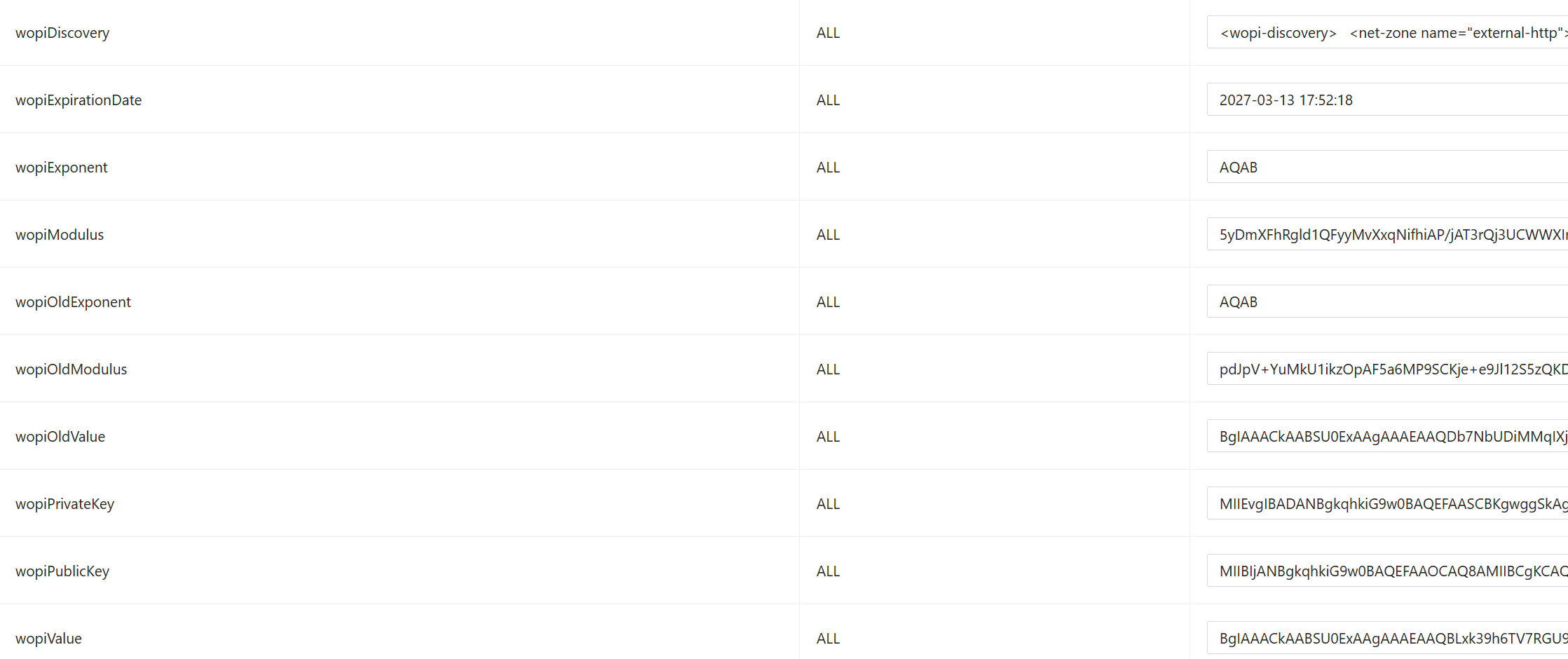
Generated Wopi properties
4. Troubleshooting
4.1 /hosting/discovery returns 503
Cause — the WOPI Client Domain is not configured.
Solution — configure Client Domain per section 2.1. Enter only the origin, with no path.
4.2 400 Bad Request — access_token is required
Cause — Host access_tokendoes not include in POST request
Solution — Check SharePoint's WOPI binding and zone settings. It behaves normally when reproduced by opening the launch URL directly in a browser.
4.3 Proof Signature Invalid (500)
Symptom — The following message is recorded in the SharePoint ULS log.
WOPI InitAndValidateForFile ExpectedFailure: invalid proof signature for file. Unable to verify WOPI Signature - Malformed WOPI proof key data: ... CryptographicException: Bad Version of provider.
Cause — The private key used for signing by discovery proof-keyand TFOwopiValue is mismatched, or is not in a standard CAPI PUBLICKEYBLOB format
Resolution
- Reload discovery in SharePoint (3.1.3).
- If it still fails wopiPublicKey, delete the Proof Key attribute and call discovery again to regenerate the key.
Non-standard formats saved in older versions are automatically corrected to a standard CAPIwopiValue format upon a discovery call and then saved back to the DB. Immediately after correction, the SharePoint discovery update is required. PUBLICKEYBLOB
4.4 Failed to save / LOCK error
Cause — Check forX-WOPI-Lock key mismatch in LOCK/UNLOCK request — Check and in the / logs .
adapterInfoLogger[WOPI] [lock][WOPI] [unlock]docIdconnId
4.5 Document opening itself failed (conversion error)
Confirm — Prioritize checking the filter server URL settings. This affects document opening overall, regardless of WOPI .
4.6 Adapter not found
Cause — The registered adapter name is not "wopi".
Solution — Either change the adapter name to "wopi" as specified in section 2.1, or modify the `urlsrc` path in the discovery configuration to match the actual adapter name.
4.7 discovery but it is not reflected
Cause — Template files are not read because TFO configuration wopiDiscovery values remain.
Solution — Perform 3.1.3 in order. If you clear only the SharePoint cache, the TFO will return the old XML as is, so it will not change.
Was this article helpful?
That’s Great!
Thank you for your feedback
Sorry! We couldn't be helpful
Thank you for your feedback
Feedback sent
We appreciate your effort and will try to fix the article